 Vietnamnet.vn

 Podcast



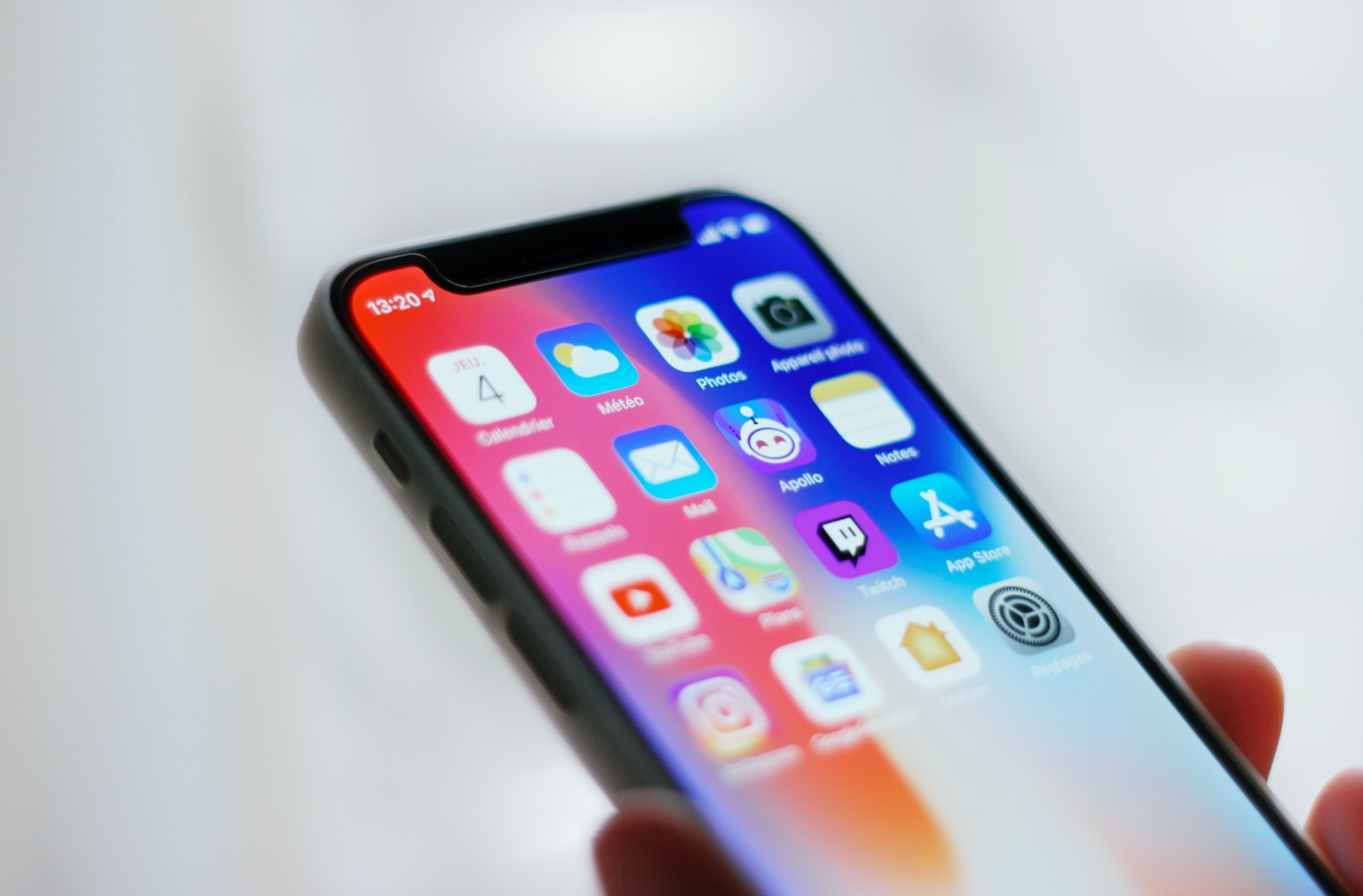
Is your iPhone suddenly feeling slow and sluggish?
Don’t rush to replace it - try these 10 simple steps to restore speed and performance.
Many issues stem from system clutter, low storage, outdated software, or too many background processes.
With these proven tips, you can breathe new life into your device.
1. Update to the latest version of iOS
iOS 26 is the current operating system, with regular minor updates like iOS 26.0.1 and iOS 26.1 designed to fix bugs and enhance performance.
Go to Settings > General > Software Update. If an update is available, install it.
Minor updates tend to improve speed and stability. However, major upgrades like iOS 27 or 28 may slow down older devices due to heavier features.
If your iPhone is older, think carefully before updating to a major version.
2. Restart your iPhone
Closing apps rarely makes a difference, but restarting your phone can free up RAM and resolve persistent app issues.
For Face ID models: Press Volume Up, then Volume Down, and hold the Side button until the power slider appears.
For iPhones with a Home button: Hold the Power button until the slider appears.
After powering down, wait a few seconds and press the Power button again to reboot.
You don’t need to do this often, but each restart helps your iPhone run smoother.
3. Turn off background processes
Low Data Mode helps limit background app activity and automatic data downloads.
To enable it, go to Settings > Cellular > Cellular Data Options > Low Data Mode.
You can also enable it for Wi-Fi: Settings > Wi-Fi > (Tap the info icon) > Low Data Mode.
Limiting background sync can noticeably improve responsiveness.
4. Reduce motion and transparency effects
While iOS’s visual effects look great, they can slow down older iPhones.
Turn off animations: Settings > Accessibility > Motion > Reduce Motion.
Reduce interface transparency: Settings > Accessibility > Display & Text Size > Reduce Transparency.
Reduce Liquid Glass effects (iOS 26+): Settings > Display & Brightness > Liquid Glass > switch from Clear to Tinted.
These changes make your interface lighter and ease the load on your CPU and GPU.
5. Clear Safari cookies and browsing data
Safari stores lots of data that can slow your phone down.
Go to Settings > Safari > Clear History and Website Data. Select “All history” for a complete reset.
Note: Safari may stop suggesting old URLs, and websites may forget your preferences temporarily.
6. Free up storage - more space, more speed
iPhones perform best when at least 10GB or 10% of storage is available.
Check usage in Settings > General > iPhone Storage.
Identify apps taking up the most space and follow cleanup suggestions.
Remove unused apps: Tap on any app and choose “Offload App” (keeps data) or “Delete App” (removes everything).
Delete large message threads: Go to Messages > Chat > Sender’s name > tap “Info” to remove specific photos or videos.
Set audio messages to auto-delete after 2 minutes: Settings > Messages > Audio Messages > Expire: After 2 Minutes.
Delete offline music: Settings > Music > Downloaded Music, and swipe to delete songs, albums, or artists.
Manage photos and videos: Enable iCloud Photos or back up to a Mac, then delete them from your iPhone.
Don’t forget to empty “Recently Deleted” and review folders like Screenshots, Bursts, and Videos for cleanup.
7. Check for performance throttling
Apple once introduced performance throttling to protect devices with aging batteries.
If using iOS 18 or earlier: Go to Settings > Battery > Battery Health & Charging. If it says “Below Peak Performance,” you can disable it.
In iOS 26+, the feature is renamed Adaptive Power. Go to Settings > Battery > Energy Mode and turn off Adaptive Power.
The best fix, however, is replacing the battery to restore full performance without trade-offs.
8. Reset your iPhone to factory settings
If nothing else works, consider a full reset.
Warning: Back up your data first.
Go to Settings > General > Transfer or Reset iPhone > Erase All Content and Settings.
After reset, choose to restore from backup. If problems persist, reset again and set it up as new (without restoring the backup) to avoid carrying bugs over.
9. Have Apple check for hardware issues
If your iPhone is still slow, it might be a hardware issue:
– Faulty processor
– Damaged motherboard
– Severely degraded battery
– Incompatible components
Visit an Apple Store or authorized service center for diagnostics. If your phone is under warranty, some repairs may be free.
10. Upgrade your iPhone
If repair costs are too high or the device is simply too old, it may be time for an upgrade.
Check Apple’s latest models and compare prices to choose one that suits your needs and budget.
Hai Phong
.svg)
