 Vietnamnet.vn

 Podcast



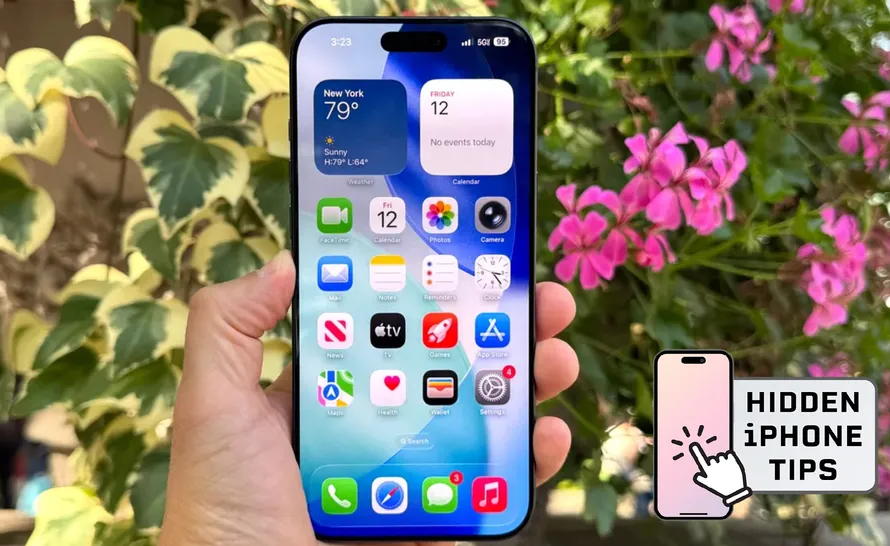
The iPhone search bar can solve math, convert units, find photos by content and access system settings instantly. Photo: Tom's Guide
With the iPhone search bar, if you know how to use it properly, you can save a remarkable amount of time and daily effort.
Most iPhone users treat the search bar as a simple tool to open apps or quickly look something up online.
Just swipe down on the home screen, type a few characters and results appear almost instantly - fast, convenient and effortless.
However, few realize that the iPhone search bar, officially called Spotlight, is far more powerful than it seems.
It does not just launch apps. It can solve math problems, convert units, search photos by content, retrieve old messages, install apps instantly and even toggle system settings without opening the Settings app.
Below are seven extremely useful Spotlight features that you may never have fully explored.
Perform quick calculations and instant unit conversions
When calculating a tip, splitting a bill or converting currency, most people open the Calculator app. With Spotlight, that extra step is unnecessary.
Simply type the equation directly into the search bar and your iPhone displays the result immediately. No app switching, no extra taps.
Beyond basic arithmetic, Spotlight can convert currencies, distances, weights, temperatures and most common measurement units.
Compared to opening Calculator and switching modes, Spotlight is noticeably faster and more convenient for quick calculations.
Find photos based on what appears in them
Searching for a specific photo among thousands used to feel like a nightmare for many iPhone users. Spotlight has changed that entirely.
You can type descriptive keywords such as “birthday cake,” “dog” or “beach,” and Spotlight will display matching photos from your library. You can also search by date, location or image type.
What makes this powerful is that your iPhone automatically analyzes photo content using AI. There is no need to manually tag or organize images.
You do not even need to open the Photos app first. Search directly in Spotlight, scroll to the Photos section and results appear. You can even press and hold an image to copy it quickly for use elsewhere.
Set alarms and timers in seconds
Normally, setting an alarm or timer requires opening the Clock app and navigating to the correct tab. Spotlight shortens the entire process.
Open the search bar and type “Clock.” Your iPhone immediately displays options such as Set Timer or Add Alarm. Tap your choice, enter the time and you are done. You can also access the stopwatch from here.
It is a small shortcut, but extremely helpful when cooking, exercising or needing a quick reminder without multiple steps.
Locate specific old messages, notes and emails
Scrolling through dozens of conversations to find one message can be frustrating. Spotlight solves this by searching directly within content.
Type a keyword or phrase you remember from the conversation, and Spotlight will display related text messages, emails or notes. There is no need to open each app separately.
This is especially useful for emails when you remember the content but not the sender or date. For notes, Spotlight lets you quickly view shopping lists or short reminders without opening the Notes app.
Toggle system settings directly from search
Control Center provides quick access to Wi-Fi, Bluetooth and screen brightness. But for many other settings, you normally have to open the Settings app and navigate through multiple menus.
Spotlight allows you to toggle options such as Always On Display, Dark Mode, Reduce Motion or Display Zoom simply by typing the setting name. A switch appears directly in the search results for immediate control.
It also offers quick access to app-specific settings. Instead of opening Settings and scrolling for an app, type the app’s name in Spotlight and tap the result under Settings to jump straight to its configuration page.
Clear or hide search history for privacy
The iPhone search bar keeps recent searches for faster access. Sometimes, however, you may not want others to see that history.
Clearing Spotlight history is simple.
You can swipe left on a specific search item and select Clear to remove it individually. To delete everything, tap Clear next to Recent Searches.
If you prefer not to show search history at all, go to Settings > Search and disable the option to display recent searches. This helps protect your privacy when someone else uses your iPhone.
Install apps faster than opening the App Store
When you already know which app you want, opening the App Store and searching again is unnecessary. Spotlight lets you download apps instantly.
Type the app name into the search bar and a download button appears next to the result. Tap it and installation begins immediately. It is the fastest way to install an app when you know exactly what you need.
Spotlight is not just a secondary tool on the iPhone. In many ways, it functions as a smart control hub that too many users overlook.
Used properly, it can save significant time and effort every day, all from just a few characters typed on your screen.
Hai Phong
.svg)
