 Vietnamnet.vn

 Podcast



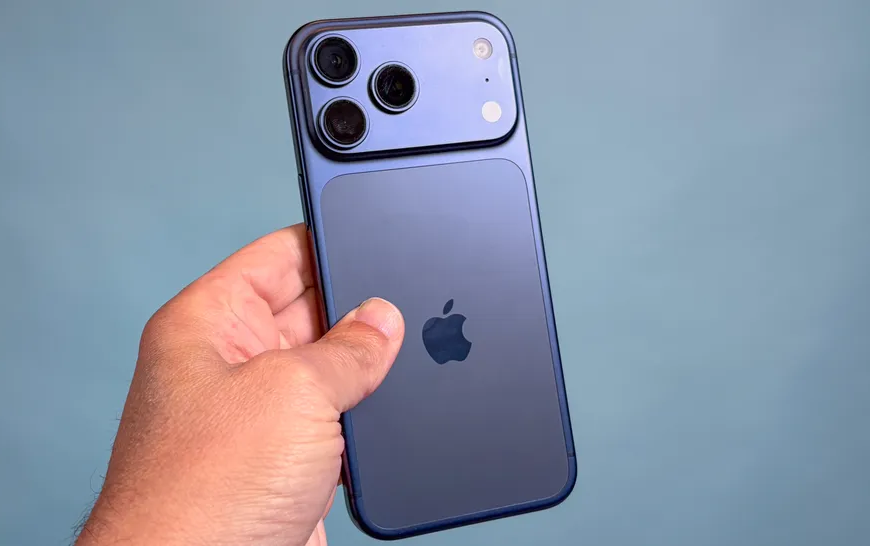
Some settings should be adjusted immediately after you start using iPhone 17 Pro Max. Photo: Tom's Guide
Whether you are a long-time iPhone user or stepping into the ecosystem for the first time, there are still several hidden settings you may have overlooked.
Many of the adjustments below apply not only to iPhone 17 Pro Max but also to other iPhone models, so they are worth sharing with family members who use an iPhone as well.
Once your iPhone 17 Pro Max is set up and ready to go, these are the first seven settings you should consider changing.
Turn the Action button into a tool that fits your habits
Unless you are upgrading from an iPhone 15 Pro or later, iPhone 17 Pro Max may be your first experience with the Action button, which replaces the traditional mute switch that sat on the left edge of iPhones for years.
By default, the Action button still toggles silent mode, except you press and hold instead of flipping a switch. Its real strength, however, lies in its flexibility.
You can transform it into a shortcut for virtually any task you frequently use.
In Settings > Action Button, you will find options such as activating Focus modes, quickly opening the camera, turning on the flashlight, recording voice memos, launching Visual Intelligence, linking to a Control Center function, enabling an Accessibility feature or even triggering a custom Shortcut you created yourself.
It is a small change, but one that delivers a noticeably more personalized experience on iPhone 17 Pro Max.
Disable the Siri wake phrase to avoid interruptions
Calling Siri by voice is often marketed as seamless and convenient. In reality, it can sometimes be more distracting than helpful, especially when your iPhone mishears something and activates the assistant unintentionally.
For that reason, you may prefer to allow Siri to respond only when you press and hold the power button, ensuring every interaction is deliberate.
To do this, go to Apple Intelligence & Siri > Talk & Type to Siri, then select Off at the top option. This simple adjustment can make your iPhone feel significantly quieter during daily use.
Set camera defaults so you do not have to readjust every time
Before fully exploring the upgraded camera system on iPhone 17 Pro Max, including Center Stage and the 4x telephoto lens, take time to review the options under Camera in Settings.
Here, you can disable or adjust the Camera Control button on the right edge, choose preferred Photographic Styles if you favor certain tones, set default formats and resolutions for photos and videos, and enable grid lines and leveling tools for more precise composition.
Most importantly, check the Preserve Settings section. This allows you to decide which options remain the same after you exit the Camera app and which ones reset automatically.
As a result, you can always start with your preferred aspect ratio, filter or shooting mode whenever you open the camera.
Show battery percentage on the status bar
It is somewhat surprising that Apple does not display detailed battery percentage on the home screen by default, requiring users to open Control Center instead.
Fortunately, you can change that.
Simply go to Battery and enable Battery Percentage. The exact number will then appear in the top-right corner of the screen. It is a small tweak, but extremely convenient in everyday use.
Combine optimized charging with smart power management
Within the battery settings, there are two important features to consider if you want to extend long-term battery health.
The first is setting a maximum charge limit to reduce battery wear over time. The second is enabling intelligent energy management when you use your iPhone intensively.
Navigate to Settings > Battery > Charging, select your preferred charge limit between 80 percent and 100 percent, and enable Optimized Battery Charging.
Then go to Battery > Power Mode and turn on Adaptive Power along with related notifications so your iPhone can automatically adjust performance to conserve energy and inform you when changes occur.
Customize Always-On Display to suit your needs
The Always-On Display on iPhone 17 Pro Max lets you see the time and important notifications at a glance. Not everyone, however, enjoys a constantly lit screen or wants the full wallpaper visible when the device is idle.
Under Display & Brightness > Always On, you can completely enable or disable the feature, as well as choose whether to show the wallpaper or use a more minimal dimmed version.
Fine-tuning this setting helps reduce distractions while aligning the display with your personal preference.
Make Haptic Touch respond faster
This is often one of the most noticeable adjustments because it directly affects how you interact with iOS every day.
Haptic Touch, the press-and-hold gesture on the screen, can sometimes feel slightly delayed, making quick menu access less fluid.
To improve responsiveness, go to Accessibility > Touch > Haptic Touch and select Fast among the available options. You can test the response speed in the preview area before exiting to ensure it feels right for you.
With just a few minutes of thoughtful adjustments, your iPhone 17 Pro Max can become more personalized, more convenient and better aligned with your daily habits.
These are small changes, but they create a meaningful difference in long-term experience.
Hai Phong
.svg)
